
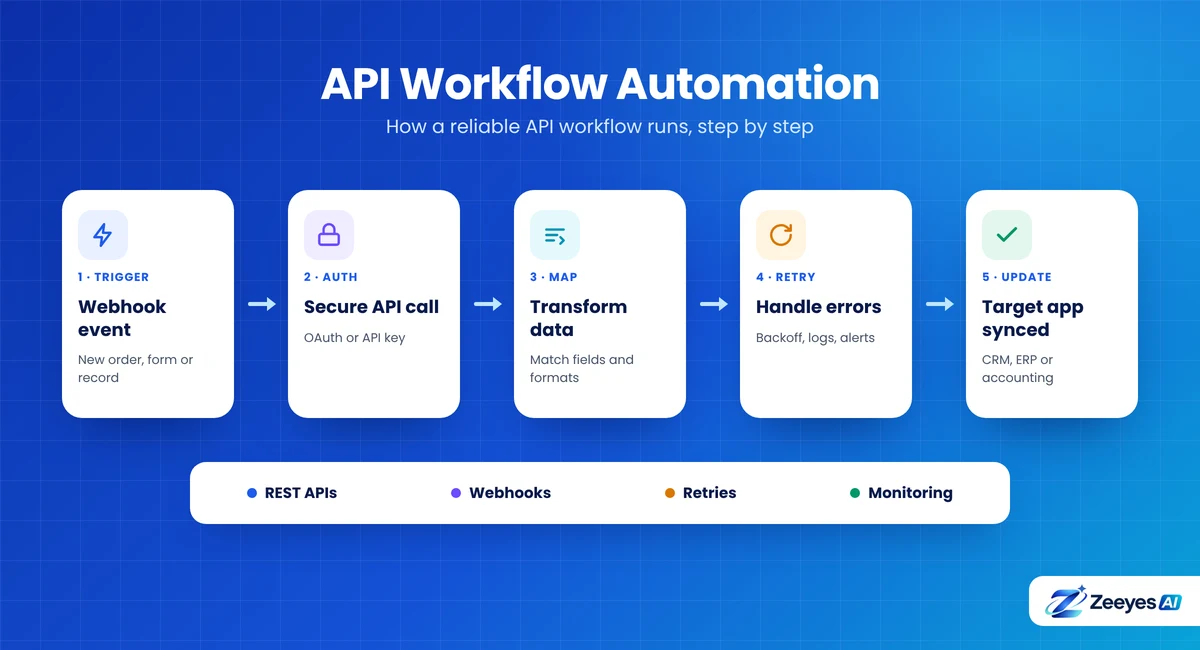
Short answer: API workflow automation uses the APIs of your business apps to run a task from start to finish without manual steps. An event such as a new order triggers API calls that read, change and send data to your CRM, accounting or support tools. A reliable workflow also checks permissions, retries temporary errors and keeps a log of every run.
Key takeaways
- Start from one business event and one clear outcome, not from the API documentation.
- Use webhooks when an app offers them; use polling only when it does not.
- Most failures come from expired tokens, rate limits and mismatched fields, not from the workflow logic.
- Plan what happens when step three of five fails, before you go live.
What is API workflow automation?
Every modern business app, from a CRM to an accounting tool, has an API: a set of doors other software can use to read or change its data. API workflow automation chains those doors together. When something happens in one app, the workflow calls the next app, passes the right data and moves on, so nobody has to copy and paste between screens.
Here is a simple example. A customer pays an invoice. The accounting app sends an event, the workflow finds the matching deal in the CRM, marks it as paid and posts a message to the sales team. Three apps, zero manual steps.
API integration vs API workflow automation
The two terms get mixed up. An API integration is a single connection between two systems, for example "send new contacts to the email tool". API workflow automation is the full business process built on top of one or more integrations, with rules, conditions, approvals and error handling. You can have an integration without a workflow, but not a reliable workflow without good integrations.
How an API workflow runs
Almost every API-driven workflow follows the same five stages:
- Trigger: an event starts the run, such as a webhook from a store, a form submission or a scheduled check.
- Authenticate: the workflow proves who it is with an API key or OAuth token that has only the permissions it needs.
- Map and transform: fields are matched between apps. "Customer name" in one app may be "first_name" and "last_name" in another; dates, currencies and tax codes often need converting.
- Act and handle errors: the workflow calls the target API, checks the response and retries if the error is temporary.
- Log and confirm: the run is recorded so you can see what happened, when and with which data.
Webhooks vs polling: which trigger should you use?
The trigger decides how fast your workflow reacts and how many API calls it uses. Most apps support one or both.
| Webhooks | Polling | |
|---|---|---|
| How it works | The app sends your workflow a message when an event happens | Your workflow asks the app for changes on a schedule |
| Speed | Near real time | Depends on the interval, for example every 5 or 15 minutes |
| API usage | Low; calls happen only when needed | Higher; calls happen even when nothing changed |
| Watch out for | Duplicate or missed events; always verify the sender | Rate limits and records changed between checks |
| Best for | Orders, payments, form submissions, status changes | Apps without webhooks, nightly batch syncs |
A common pattern is to use webhooks for speed and a nightly polling job as a safety net that catches anything a webhook missed.
Real examples of API workflow automation
These patterns come up again and again in the projects we build.
1. Approved purchase orders from CRM to accounting
A purchase order in Zoho CRM is created in Xero only when two rules match: Approval Status is Approved and Office is United Kingdom. It arrives as a draft so finance can review it. We cover the full build in our Zoho CRM to Xero case study.
2. Content from a SaaS app to WordPress
For Contenvo, an AI content platform, posts are sent to each customer’s WordPress site through a plugin with its own REST endpoints. Every request is signed so the site only accepts posts from the platform, and posts land as drafts. Payment events from Stripe arrive by webhook and update each user’s credits automatically.
3. Store orders to inventory, invoices and shipping
A new online order triggers stock updates, creates an invoice in the accounting app and sends tracking details to the customer. See our e-commerce automation service.
4. Support tickets routed by content
A new ticket is read, tagged by topic and urgency, and assigned to the right team, with the customer’s order history pulled in from other apps through their APIs.
How to build an API workflow in 7 steps
Step 1: Define the trigger and the outcome
Write one sentence: "When event happens in app A, do action in app B within time." For example: "When an order is paid in the store, create the invoice in the accounting app within one minute." If you cannot write this sentence, the workflow is not ready to build.
Step 2: Check what each API allows
Read the API documentation for every app involved. Confirm that the fields you need are available, whether webhooks exist, and what the rate limits are. Missing fields are cheaper to discover now than after launch.
Step 3: Set up access with the least permissions
Create separate credentials for testing and live use, give each one only the scopes it needs, and store them in a secrets manager, not in code or spreadsheets.
Step 4: Map the data
List every field you will send, where it comes from and what format the target expects. Pay extra attention to tax codes, currencies, dates, time zones and IDs. In our experience, mismatched tax codes are one of the most common reasons an invoice sync fails.
Step 5: Plan for errors
Decide which errors to retry and which to stop on:
- Retry timeouts, server errors and 429 Too Many Requests, with a growing wait between attempts.
- Stop and alert on missing permissions, invalid data or records that do not exist.
- Use an idempotency key so a retried request never creates a duplicate record. Stripe’s guide to idempotent requests explains the idea clearly.
Step 6: Test with real records
Test with a copy of real data, including the awkward cases: a customer with no email, an order in a different currency, a deleted product. Then change one thing at a time so you know which change fixed or broke a run.
Step 7: Launch, watch and improve
Go live with logging and alerts switched on. Review the run log daily for the first week, then weekly. Set a clear success measure, such as "99% of orders reach accounting without manual help", and track it.
What happens when a step fails halfway?
This is the part most guides skip. Imagine a five-step workflow where steps one and two have already created a customer and an invoice, and step three fails. Retrying step three is fine if the problem was temporary. But if it keeps failing, you now have half-finished data in two apps.
There are two safe ways to handle it:
- Pause and resume: the workflow stops, records exactly where it stopped and alerts a person. Once the issue is fixed, the run continues from step three instead of starting again.
- Undo completed steps: for each action, plan a matching undo, such as voiding the draft invoice or archiving the new contact. If the run cannot finish, the undo steps run in reverse order.
Creating records as drafts, as in our Zoho CRM to Xero workflow, also limits the damage: a draft can be reviewed or deleted before it affects your books.
API workflow security checklist
- Use HTTPS for every call and webhook.
- Give each credential only the scopes it needs, and rotate keys on a schedule.
- Verify webhook signatures so you only accept events from the real sender.
- Keep test and live credentials, endpoints and data separate.
- Never log full card numbers, passwords or tokens.
- Review the OWASP API Security Top 10 for the most common API risks.
Custom API workflow or ready-made connector?
Both are valid. The right choice depends on your rules, your systems and who will maintain the workflow.
| Ready-made connector | Custom API workflow | |
|---|---|---|
| Setup time | Hours to days | Days to weeks |
| Business rules | Limited to the options provided | Any rule, approval or condition you need |
| In-house or legacy systems | Often not supported | Supported through their APIs or databases |
| Cost pattern | Subscription that grows with usage | Upfront build, then lower running cost |
| Best for | Standard syncs between popular apps | Your own process, higher volumes or strict security needs |
If your apps are covered, a connector is the fastest start. For Zoho CRM, Xapplets offers ready-made integrations with accounting, e-commerce and marketing apps. When you need your own rules or systems, Zeeyes AI builds custom AI workflow automation and supports it after launch.
Frequently asked questions
What is API workflow automation?
API workflow automation connects business apps through their APIs so a task runs on its own from start to finish. An event in one app, such as a new order, triggers API calls that read, change and send data to other apps without anyone copying it by hand.
What is the difference between webhooks and polling?
A webhook is a message an app sends the moment something happens, so your workflow reacts in near real time. Polling means your workflow asks the app for changes on a schedule. Webhooks use fewer API calls and are faster; polling is useful when an app does not offer webhooks.
How do you handle errors in an API workflow?
Retry temporary errors such as timeouts and 429 rate-limit responses with a growing wait between attempts. Do not retry errors caused by bad data or missing permissions; log them and alert a person. Every run should leave a record you can check later.
What happens if one step fails halfway through a workflow?
Earlier steps may already have written data. A reliable workflow either pauses and lets a person resume it, or runs an undo step for each completed action, such as cancelling a draft invoice it created. Planning this before launch prevents half-finished records.
Should I build a custom API integration or use a ready-made connector?
Use a ready-made connector when it already supports your apps and rules. Build a custom API workflow when you need your own business rules, an in-house system, high volumes or strict security controls. Many teams start with a connector and add custom steps later.
How long does it take to build an API workflow?
A simple two-app sync with clear rules can be live in days. Workflows with several systems, approvals, data clean-up or compliance needs take longer. Agreeing the trigger, the rules and the success measure first shortens the build.
Planning an API workflow?
Tell us which apps you want to connect and the rule you need. We will map the workflow with you on a 30-minute call.