
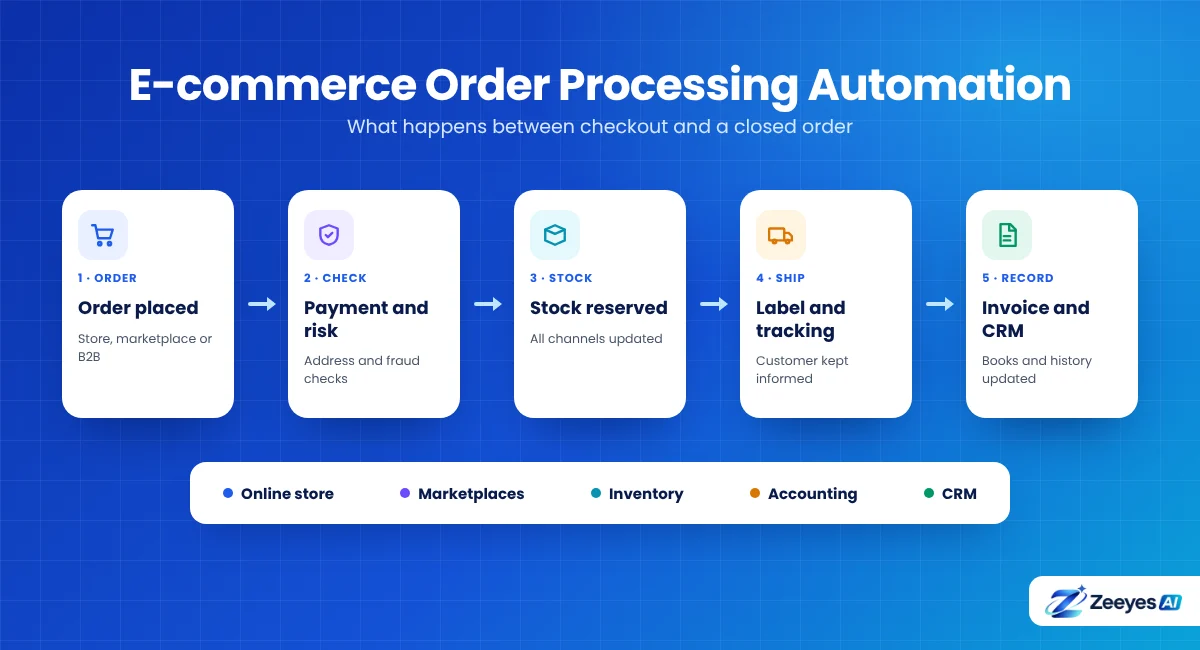
Short answer: E-commerce order processing automation uses connected software to handle everything after checkout: payment and fraud checks, stock updates across every channel, shipping labels, tracking emails, invoices in your accounting software and the customer record in your CRM. Routine orders move through on their own, and only the unusual ones reach a person.
Key takeaways
- Map your current order flow on paper before choosing any tool.
- Pick one system as the master record for stock, or overselling will follow.
- The orders that go wrong matter more than the ones that go right. Plan for them first.
- Keep people in charge of large refunds, flagged payments and unhappy customers.
What is e-commerce order processing automation?
Every order sets off a chain of small jobs. Someone confirms the payment, checks the address, reserves the stock, prints a label, emails tracking details, records the sale for accounting and notes the purchase against the customer. When orders are few, one person can do all of this. As volume grows, or as you add a marketplace or a second warehouse, those small jobs start to pile up and mistakes creep in.
Order processing automation connects the systems involved, such as your store, inventory, shipping, accounting and CRM, so these jobs run on their own the moment an order arrives. It is not about removing people. It is about letting your team spend its time on the orders and customers that actually need attention.
Signs you have outgrown manual order processing
- Your team copies order details from the store into another system every day.
- You have sold an item online that was already out of stock.
- Customers email to ask where their order is because tracking was not sent.
- Sales figures in your store and in your accounting software do not match at month end.
- Busy days, such as a sale or a holiday, mean late shipments and overtime.
If two or more of these sound familiar, automation will likely save real time. If none do, your store’s built-in tools may be all you need for now, and that is a perfectly good answer.
What to automate at each stage of the order
| Stage | What can run automatically | When a person should step in |
|---|---|---|
| Order received | Order pulled from every channel into one queue, tagged by type and priority | Large B2B or custom orders |
| Payment and risk | Payment confirmed, address validated, risk score checked | Orders flagged as high risk |
| Stock | Items reserved, quantities updated on every channel | Partial stock or backorders |
| Fulfillment | Order routed to the right warehouse, label created, packing slip printed | Fragile, oversized or special items |
| Customer updates | Confirmation, shipping and delivery emails sent | Delays or lost parcels |
| Accounting | Invoice or sales receipt created with tax, shipping and discounts | Unusual tax or currency cases |
| CRM | Customer record and order history updated, follow-up tasks created | High-value or at-risk customers |
How to automate e-commerce order processing in 6 steps
1. Map how orders move today
Write down every step from checkout to a closed order, who does it and which system it touches. Include the workarounds, like the spreadsheet someone keeps for wholesale orders. This map shows where time is lost and where errors start.
2. Clean up product data
Automation depends on matching products across systems. Make sure every product and variant has one SKU that is the same in your store, marketplaces, inventory and accounting. Mismatched SKUs are one of the most common reasons an order sync fails.
3. Choose the master record for each type of data
Decide which system owns stock levels, which owns prices, which owns customer details and which owns invoices. Every other system reads from that master instead of keeping its own version.
4. Set the rules for routine orders
Define what a normal order looks like and what should happen to it, for example: “Paid, in stock and shipping within the country: reserve stock, send to the nearest warehouse, create the label and send tracking.” Start with the rule that covers most of your orders.
5. Define what happens to exceptions
For every rule, decide where an order goes when it does not fit, and who is told. The next section covers the exceptions most stores run into.
6. Test with real orders, then watch closely
Run past orders through the workflow, including the awkward ones. After launch, check the log every day for the first couple of weeks. Most issues show up early and are quick to fix if someone is looking.
Plan for the orders that do not go to plan
Most order automation guides stop at the happy path. In practice, the time savings and the customer experience depend on how well exceptions are handled.
- Partial stock: decide whether to ship what you have and backorder the rest, hold the whole order, or ask the customer. Make this a rule, not a daily decision.
- Address problems: validate addresses at checkout where possible. When one fails, pause the order and email the customer before a label is created.
- Flagged payments: hold high-risk orders for review instead of cancelling them automatically. Many are genuine customers.
- Order changes after payment: set a cut-off time after which edits are no longer accepted, so the warehouse is not packing an outdated order.
- Split shipments: when items ship from different locations, send one clear message so the customer is not confused by two tracking numbers.
- Shipping delays: tell customers early. In the US, the FTC’s Mail, Internet, or Telephone Order Merchandise Rule sets out when sellers must notify customers of delays and offer the option to cancel.
How to prevent overselling across multiple sales channels
Overselling happens when two channels sell the same last item before either one knows. Three habits prevent most of it:
- One source of truth for stock. Your store, inventory app or ERP holds the real count, and every channel reads from it.
- Update on every movement. Sales, returns, cancellations, damaged goods and manual adjustments all update the master straight away.
- A small safety buffer. For fast-selling items, show slightly less stock on marketplaces than you hold, to cover the short delay between syncs.
Syncing e-commerce orders to accounting and CRM
Fulfillment tools focus on getting the parcel out. The back office often gets left behind, which is where month-end headaches come from.
Orders to accounting software
Orders can be sent to Xero, QuickBooks or Zoho Books as invoices or sales receipts, with tax, shipping, discounts and payment fees mapped to the right accounts. Stores with high volume often post a daily summary rather than one entry per order. Agree the approach with your accountant before you build it. Our guide to CRM accounting integration covers tax mapping, duplicates and two-way sync in more detail.
Orders to your CRM
When every order is attached to the customer record, your team can see lifetime value, spot repeat buyers and follow up on abandoned or high-value orders. If you use Zoho CRM, Xapplets offers a ready-made Shopify integration alongside its accounting connectors.
Automating returns and refunds
Returns are where customer trust is won or lost. A good returns workflow:
- checks the order date and item against your return policy
- creates a return label and sends instructions
- updates stock only when the item is received and checked
- issues the refund and records it in accounting
- sends anything outside the policy, or above a set refund amount, to a person
What to measure
Pick a few numbers before you start so you can see whether the workflow is helping:
- Order-to-ship time: from payment to label created.
- Manual touches per order: how often someone has to step in.
- Order error rate: wrong items, wrong addresses or duplicate shipments.
- Overselling incidents: orders cancelled because stock was not there.
- “Where is my order?” tickets: a quick sign of whether customer updates are working.
Built-in tools, apps or a custom workflow?
Start with what your platform already does. Shopify Flow, for example, handles simple rules like tagging orders or alerting staff. Add apps when you need a specific job done, such as shipping labels or multi-channel stock. A custom workflow makes sense when orders need to pass through several systems with your own rules, such as B2B pricing, several warehouses, an ERP or an in-house tool. That is the kind of work covered by our e-commerce and retail automation service.
Frequently asked questions
What is e-commerce order processing automation?
It is the use of software to handle the steps after a customer places an order: checking payment, reserving stock, creating shipping labels, sending tracking updates, recording the sale in accounting and updating the customer record. People only step in when something unusual happens.
How do I automate order processing in Shopify?
Start with what Shopify already offers, such as automatic fulfillment for in-stock items and Shopify Flow for simple rules like tagging high-value orders. When orders also need to reach your accounting software, CRM, warehouse system or other sales channels, connect those through integrations or a custom workflow.
How do I stop overselling when I sell on several channels?
Keep one system as the master record for stock, such as your store, an inventory app or your ERP. Every sale, return and stock adjustment updates that master first, and it pushes available quantities to each channel. Holding back a small safety buffer on fast-moving items helps cover sync delays.
Can e-commerce orders sync automatically to Xero or QuickBooks?
Yes. Orders can be sent to your accounting software as invoices or sales receipts, with tax, shipping and discounts mapped to the right accounts. Many stores post a daily summary instead of one entry per order to keep the books cleaner. Agree the approach with your accountant first.
Should returns and refunds be fully automated?
Automate the routine parts: checking the return window, creating the return label and updating stock when the item arrives. Keep a person involved for refunds above a set amount, damaged items, repeat returners and anything that does not fit your policy.
Is order automation worth it for a small online store?
If you handle a few orders a day from one channel, your store's built-in tools are often enough. Automation starts paying off when you sell on more than one channel, ship from more than one location, or spend a noticeable part of each day copying orders between systems.
Final thoughts
Good order automation is quiet. Customers get their parcels and updates on time, stock is right on every channel, and the books match at month end. Get there one step at a time: map the flow, fix the product data, automate the routine orders and give the exceptions a clear path. The rest of the work gets easier from there.